Input#
Input nodes use data sent by external devices, such as a graphic tablet or a keyboard.
Tablet nodes#
These nodes get data sent by a tablet and its stylus, such as pressure or altitude. However, some nodes can only be used with specific stylus. All these nodes gives a Float result.
If you need a visual explanation, you will find an old tutorial made on the plugin ILIAD in 2020 which can still be helpful.
Pressure#
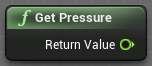
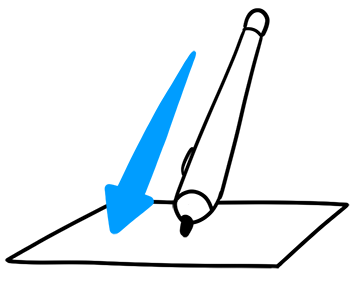
Pressure is undoubtedly the most well-known use of a graphic tablet, as it corresponds to the strength you put onto the tip of your stylus.
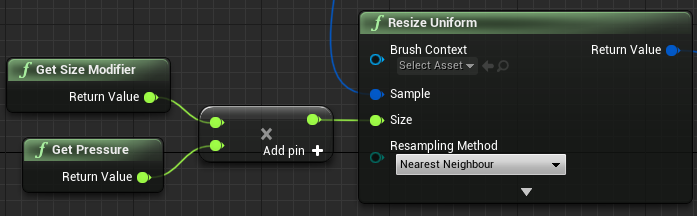
This node sends a Float value between 0 (no pressure) and 1 (maximum pressure) and can be multiplied with other nodes to increase or decrease one or several settings of a brush (size, flow, etc). Typically, in the case below, the size of the brush will get bigger or smaller, depending on the pressure of the stylus on the tablet.
Altitude#
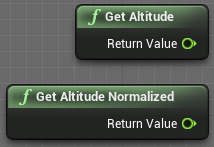
Altitude is also sometimes called “Tilt” in other painting software. It corresponds to the angle of the stylus relative to the graphic tablet.
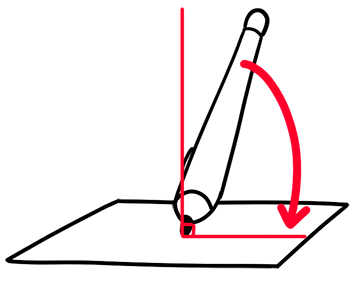
Get Stylus Altitude gives a Float value between 0° (stylus is horizontal) and 90° (stylus is perpendicular). This node can be used to be converted into an Integer and make subtle color changes when you paint.
Get Stylus Altitude Normalized gives a Float value between 0 (stylus is horizontal) and 1 (stylus is perpendicular). As an example, it can be used to affect the size of a brush.
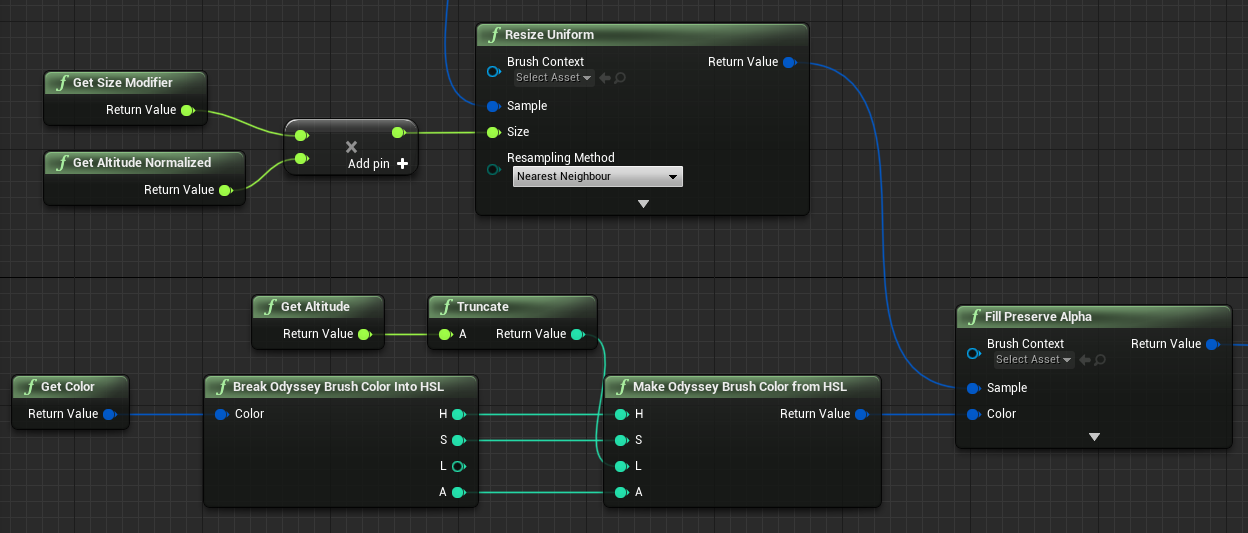
In the example below, the altitude of the stylus is used twice:
“Get Stylus Altitude Normalized” is combined with “Get Size Modifier” - which affects the size of the brush
“Get Stylus Altitude” affects the luminosity of the brush.
The Blueprint:
The result:
Azimuth#
Imagine your stylus as a clock hand and its tip is the center of that clock. When you rotate the stylus clockwise or counter-clockwise, the information sent by your graphic tablet is what we call the Azimuth.
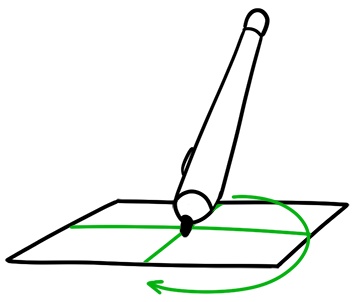
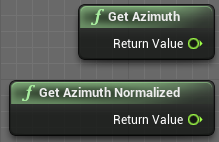
Get Stylus Azimuth gives a Float value between 0° and 360° (or, actually, 359,99°). 0° corresponds to Noon, 90° corresponds to 3 o’clock, 180° corresponds to 6 o’clock, 270° corresponds to 9 o’clock.
Get Stylus Azimuth Normalized gives a Float value between 0 and 1 (where 0 = 0° and 1 = 360°).
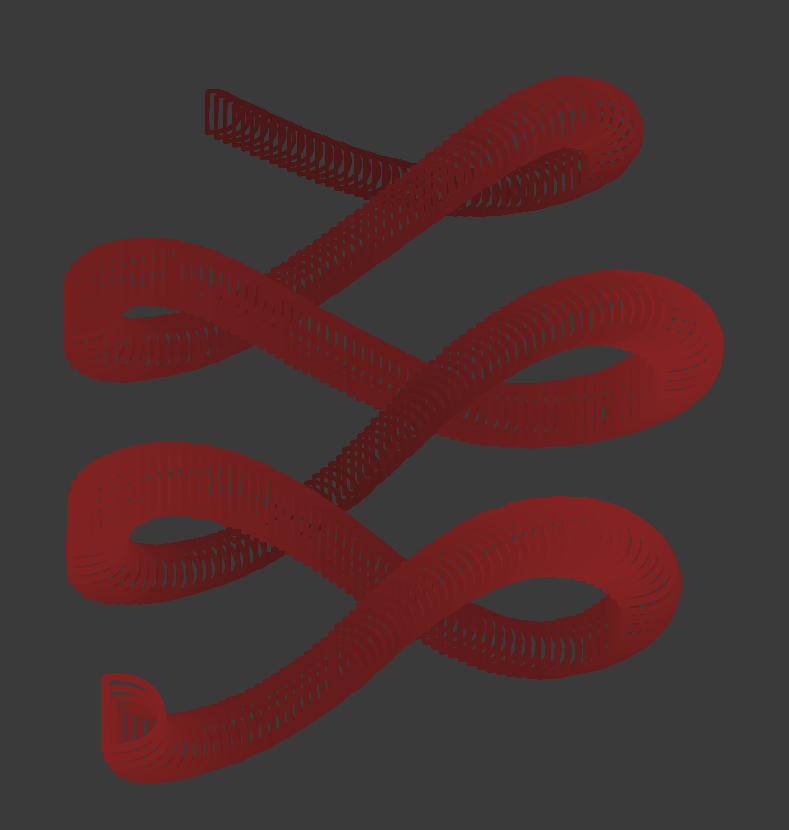
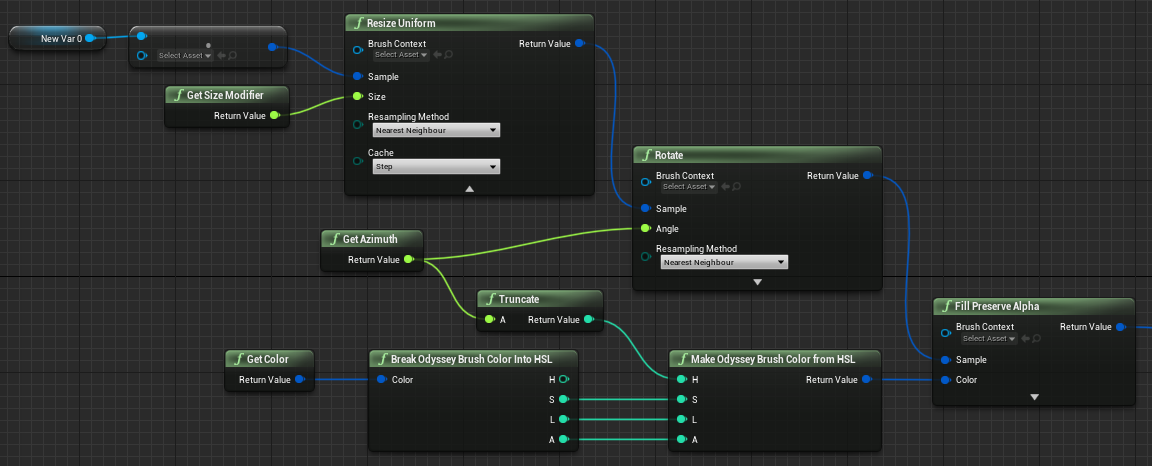
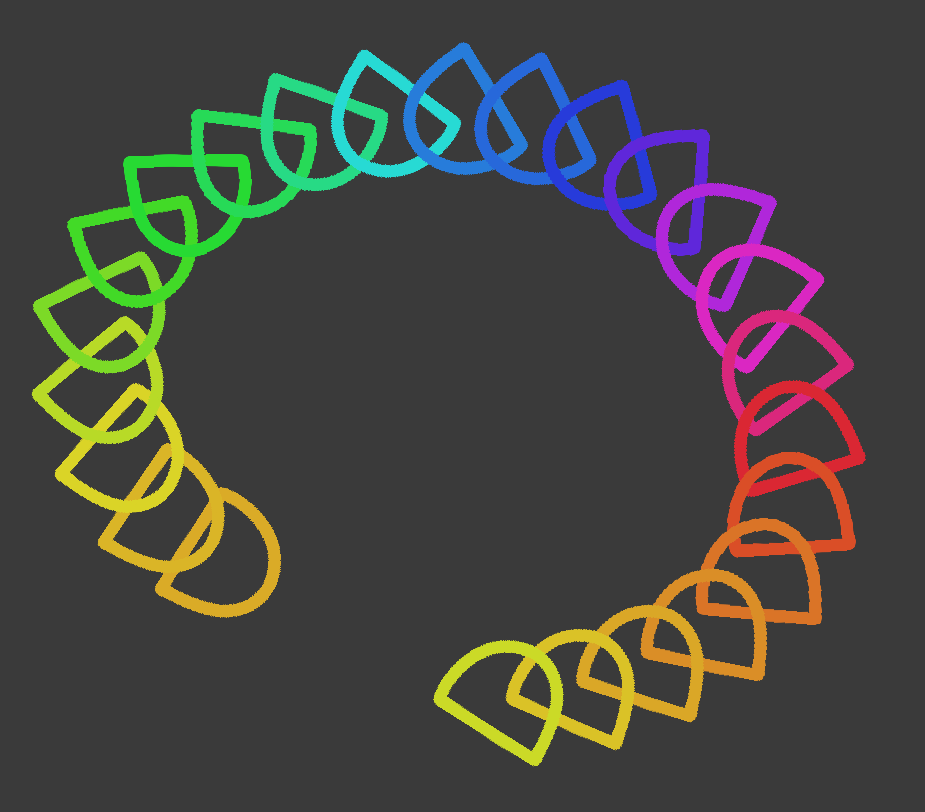
A concrete example where Azimuth is used to modify the brush angle and hue:
The Blueprint:
The result:
Twist#
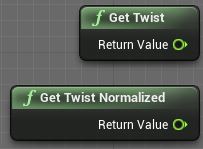
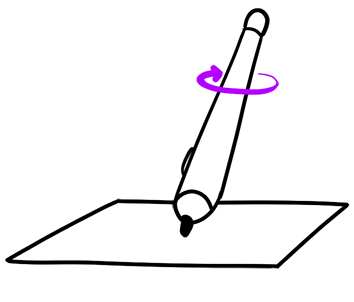
Twist is the rotation of the stylus on its own axis. If you use a Wacom graphic tablet, these nodes will require a specific stylus, like a Pro Art Pen.
Get Stylus Twist gives a Float values between 0° and 360° (actually, 359,99°). If you’re right-handed, and if we use the side buttons as references:
0° (your thumb is on buttons)
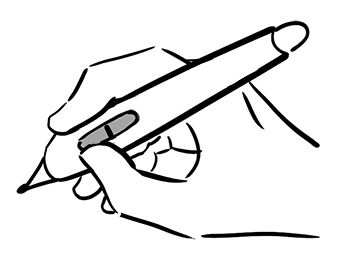
90° (your index is on buttons)
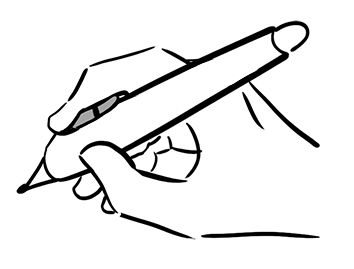
180° (buttons are hidden in your hand)
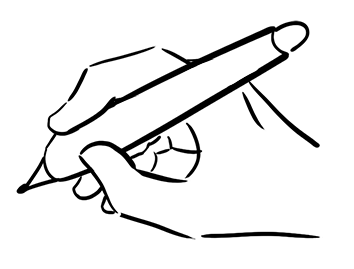
270° (buttons are just behind your thumb)
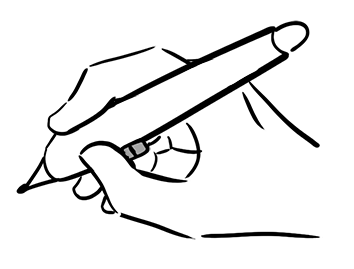
Get Stylus Twist Normalized gives values between 0 and 1 (0 = 0° and 1 = 360°).
Keys Down#
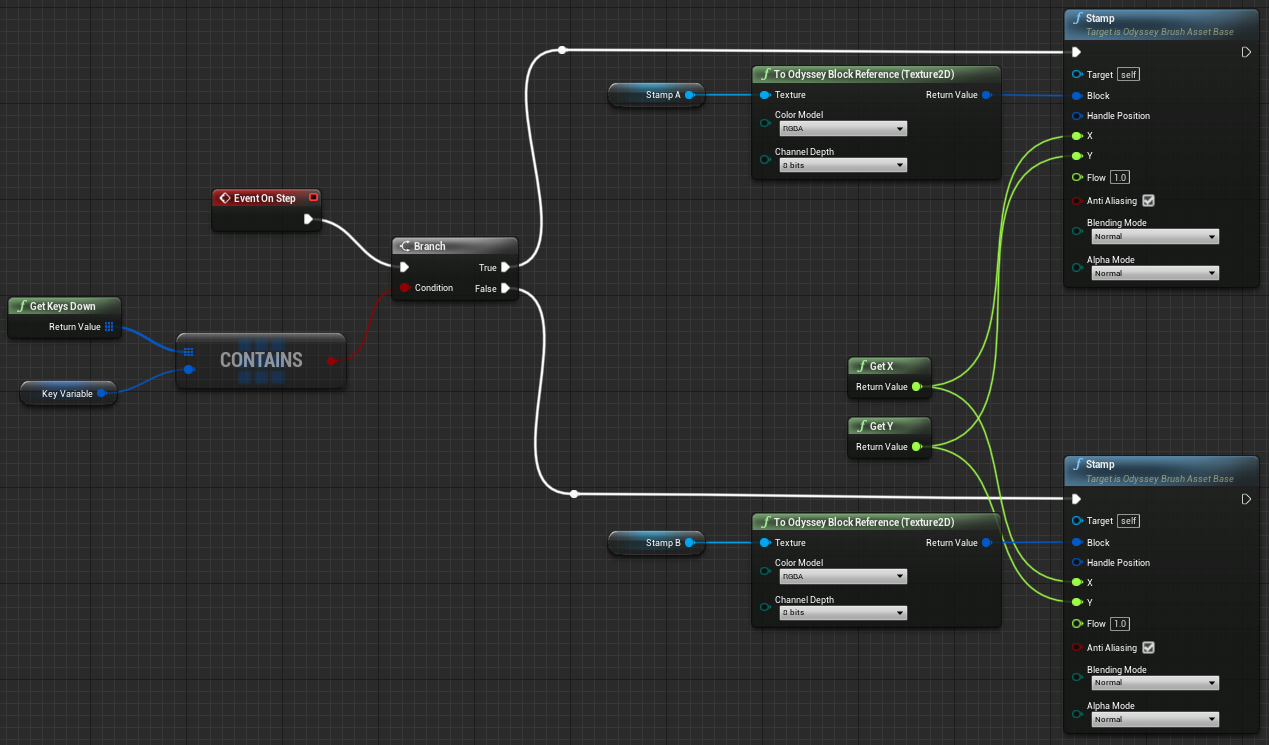
An Odyssey Brush can include shortcuts to call variations or different settings. For instance, you could switch between 2 different stamp, modify the color of a brush or its the size.
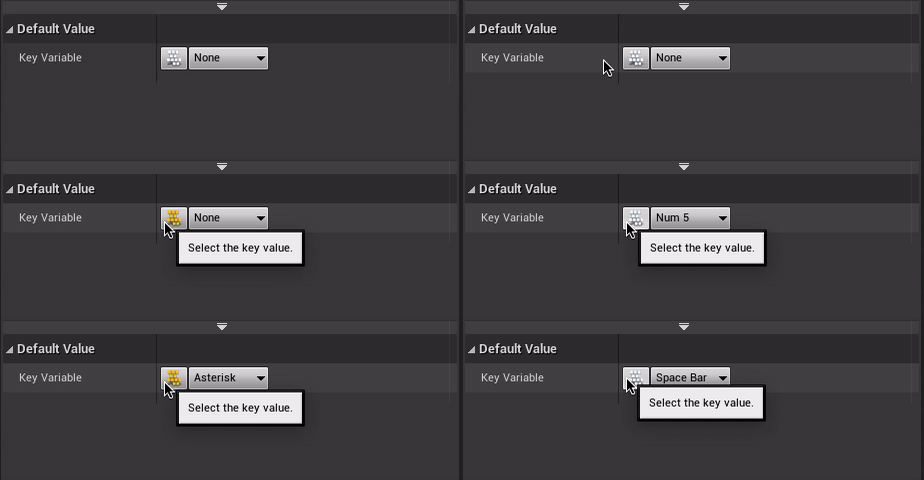
To add a shortcut, you must first add a variable “Key”:
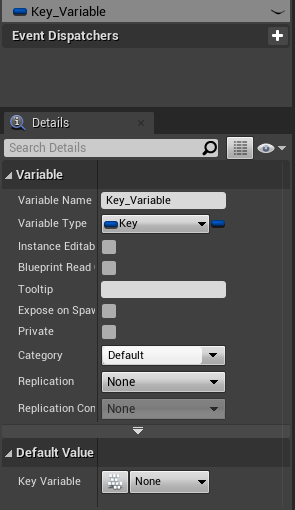
You can then either choose the key among the list:

Or click on the tiny button on the left, then select the input to be used (mouse our keyboard):
In your Blueprint, add the node “Contains item” in the category “Utilities › Array” and connect it to “Get Keys Down” with the variable you have just created. You must then connect it to a node “Branch”, whose the outputs “True” and “False” will be connected to different Stamps.