
Animation 2D#
Animation 2D are special assets available only with Odyssey. They can be used to make 2D characters, props, FX, and they can even be used as sprites for games.
Create Animation 2D#
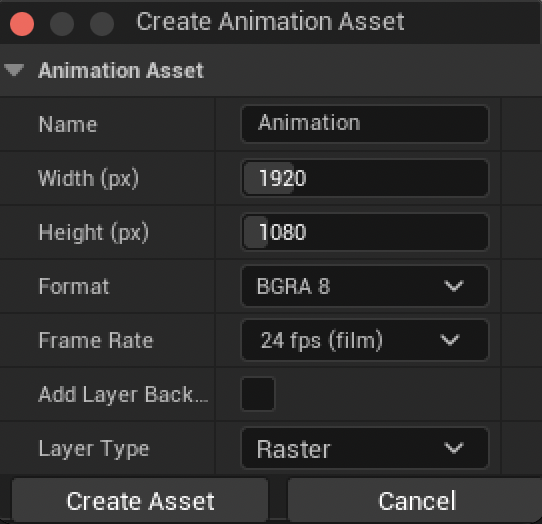
Select “Animation” from the sub-menu Odyssey to display this settings panel:
Icon |
Description |
|---|---|
Name |
Enter the name of your Animation. According to the naming convention, they should be like “An_AnimationAssetName” |
Width | Height |
Choose the size of your texture in pixels. If the Animation will be used with a Material to modify a 3D object, we strongly advise you to make sure it fits the expectation of the 3D object. |
Format |
This dropdown menu will let you choose the image format : BGRA8 (8 Bit) and RGBA F (16 bit) If you don’t know what Format to use, keep the defaul value. |
Frames Per Second |
Choose here the framerate of your animation. |
Add Layer Background |
Check this option to get a Raster Layer as a background with the color of your choice. |
Layer Type |
Choose between a Raster Layer or a Vector Layer by default. |
Warning
You cannot change the size of an Animation 2D afterward! Choose wisely!
Import images as Animation 2D#
After opening the Animation 2D, in the menu File, you will find a sub-menu “Import” with two options: “Texture Sequence” or “Image Sequence”.
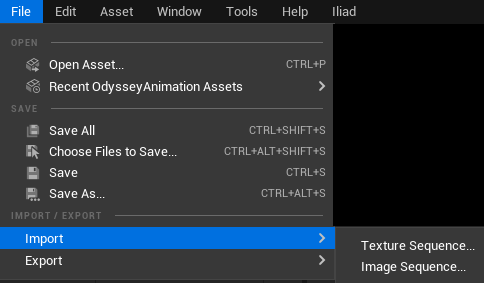
Texture Sequence: will use assets Texture 2D to create a new Raster Layer from it. All Textures 2D will be converted into Cells.
Image Sequence: will use an image sequence (jpg, png, tga or bmp) and create a new Raster Layer from it. All selected images will be converted into Cells.
Note
At the moment, there is no feature to resize an imported sequence, so make sure dimensions match.