
Using Media Textures / Tracks#
This technique require more steps than the described previously, but it might be useful with when working on a complex 3D object using various materials and Textures. With this technique, you can animate a crack on a rock, a drooling drop on a leaf or an insect on a trunk. These animations will be played at a specific moment in the Level Sequence.
To achive this, we first need these 3 elements: an Animation Asset, a Static Mesh Actor and a Level Sequence.
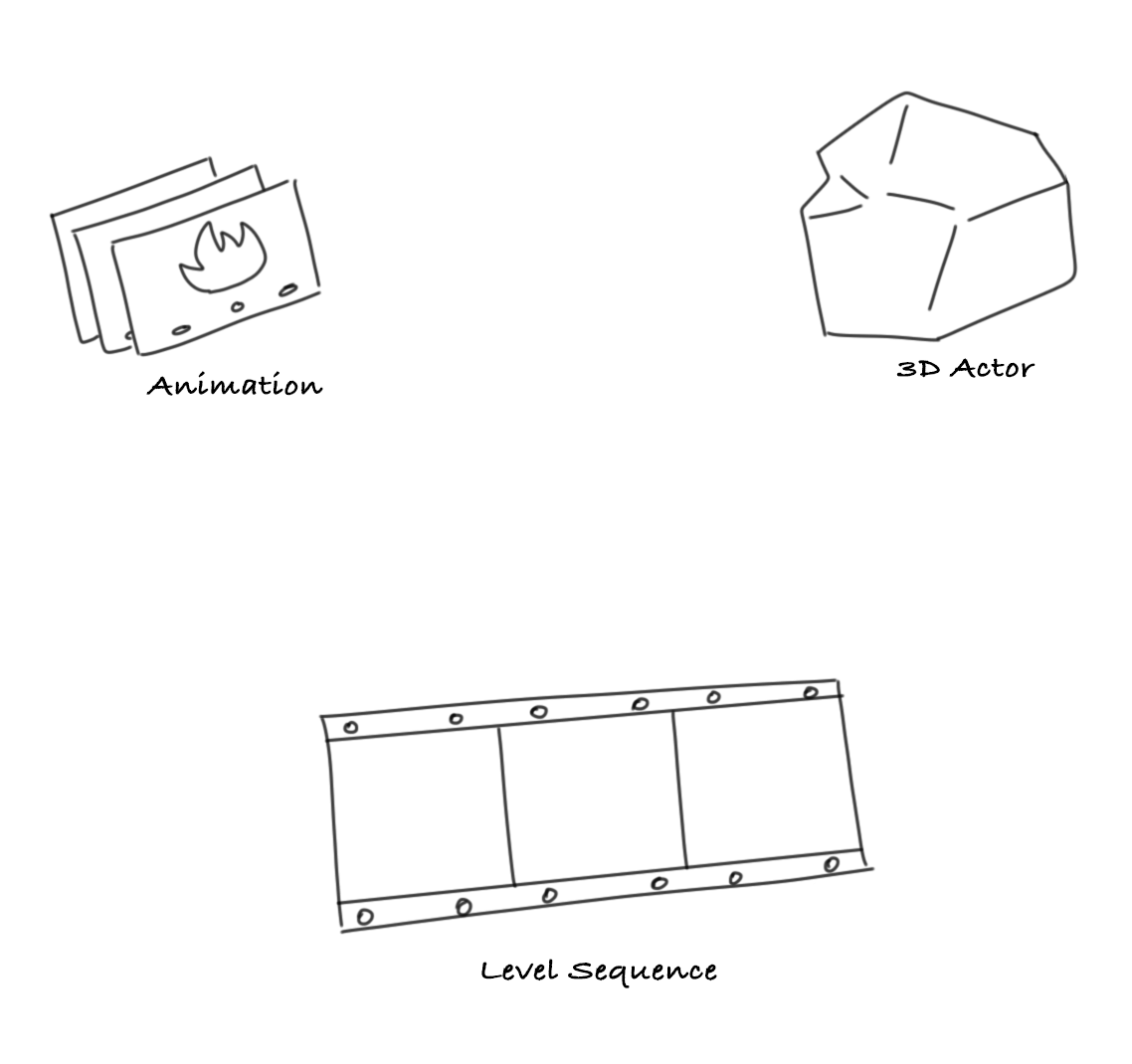
However, connecting an Animation, an Actor and a Level Sequence together will require a Media Track and a Media Texture. Media Textures will help you to establish a simultaneous connection between a 2D Animation, a Material and a Media Track within a Level Sequence. Thanks to Media Textures, what you see in the 3D environment is coherent with the Sequencer and the 2D Animation.
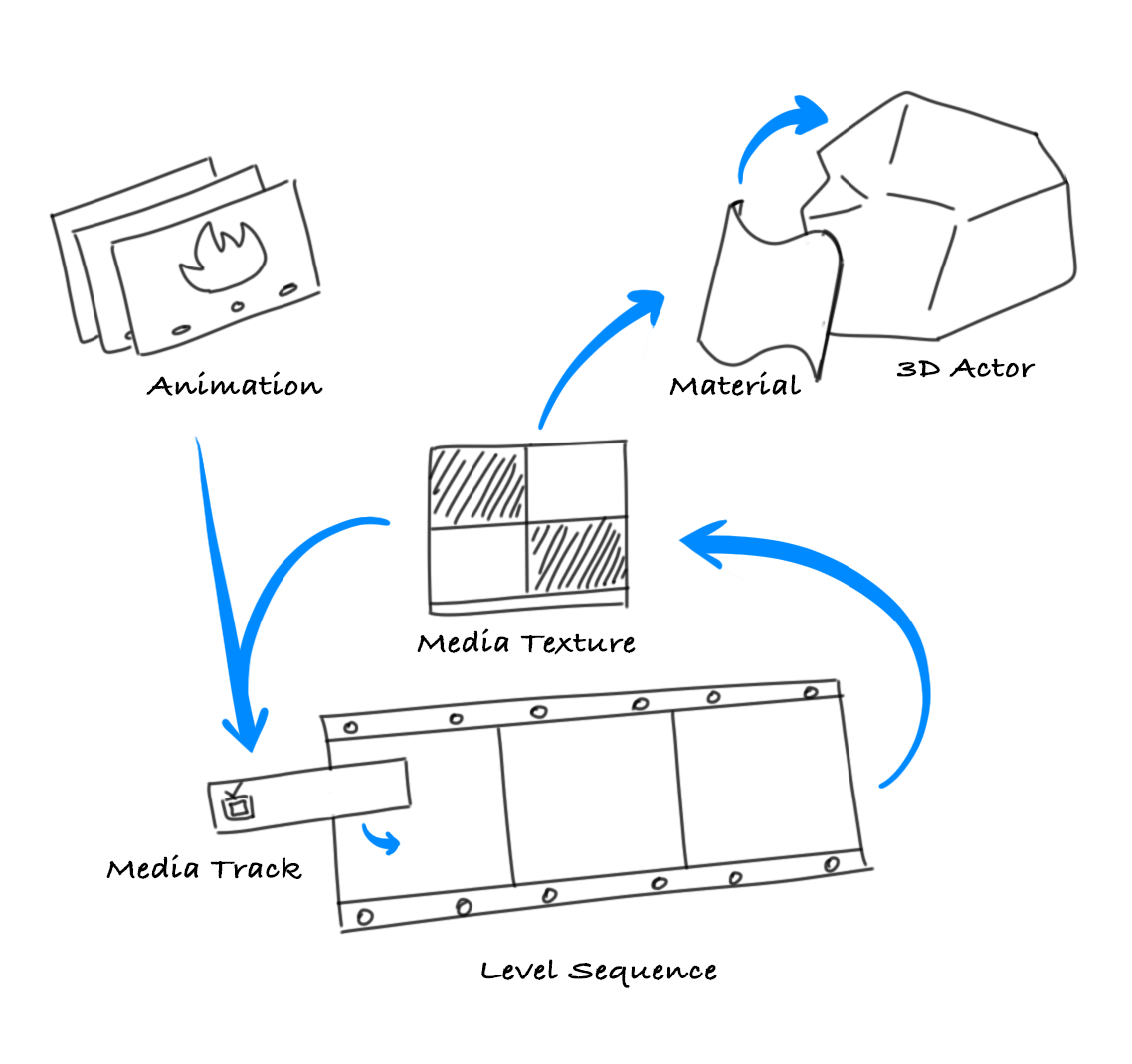
Basically, the Media Texture is used in a Material which is applied to an Actor (Static Mesh, Decal, etc). The Media Texture is combined with the Animation thanks to a Media Track in the Level Sequence. The position of the cursor in the timeline of the Sequencer tells the Media Texture what frame from the Animation should be displayed, so the Material can display the right frame accordingly. The result is then visible on the Actor. When we play the Level Sequence, the Animation will be played on the Actor.
Let’s see step by step how to use an Animation on an Actor thanks to a Media Texture.
Get a Static Mesh in your Content Browser (import a FBX, download from the Marketplace, mmigrate from another project). In this example, we will be using a rock.
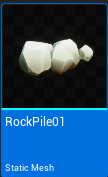
Drag and drop the Static Mesh in the Level to create an Actor.
Create an Animation Asset in the Content Browser (right click ▸ Odyssey ▸ Animation).
Warning
Pay attention to the definition of the Animation. The default “1920 x 1080” might not correspond to what the Actor needs. In this example, the rock requires a Texture of 1024 x 1024, so the Animation must have the same definition.
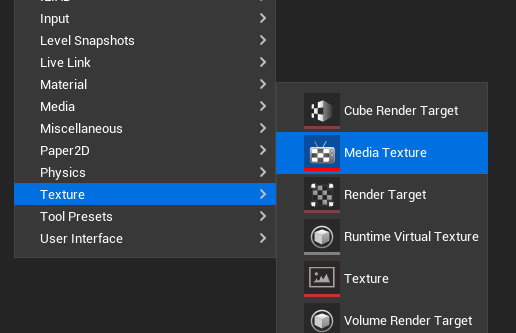
Create a Media Texture in the Content Browser (right click ▸ Texture ▸ Media Texture).
Assign the Media Texture to the Material of the Actor (socket might change depending on the context).
Tip
You can also create your own Material out of the Media Texture and apply it to your Actor through the panel Details.
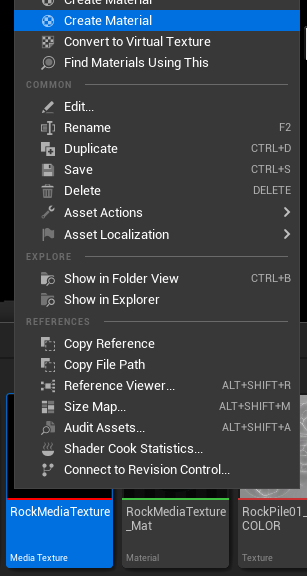

Create a Level Sequence and open it.
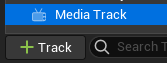
In the button “+ Track”, add a Media Track.
Click on the tiny “+” on the right side and select “Media Source”. In the list, select the Animation you created beforehand.

Once added, make a right click on the small zone (feel free to zoom in the timeline for a better visibility - use Alt+Shift+RMB or Ctrl+Scroll or Cmd+Scroll on MacOS) and go to the Properties. In the Properties, add the Media Texture you created.
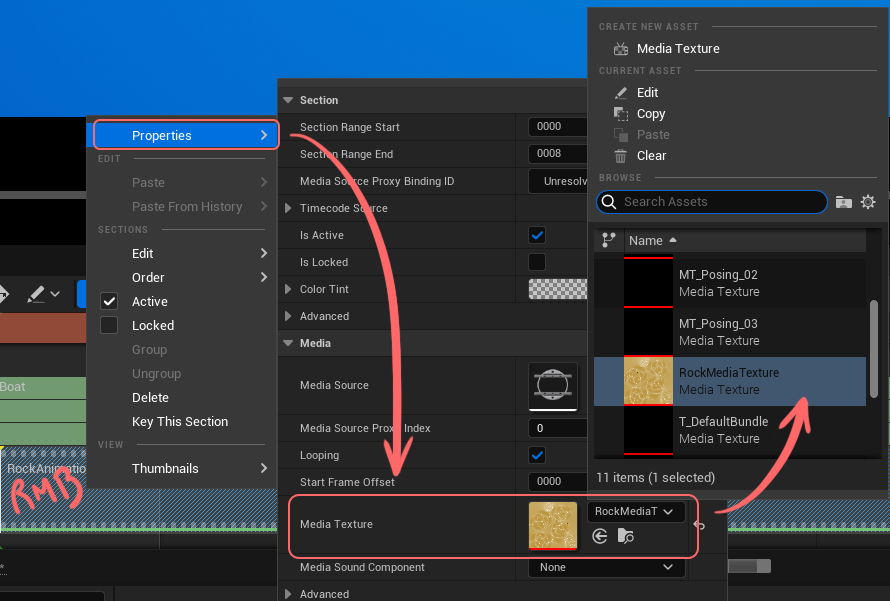
Congratulations, the Animation is now visible on the rock.