
Texture 2D#
Textures 2D are asset used in many different contexts:
to paint on textures used in a 3D mesh
to create post-processes
to paint decals
to make foliages
create pixel-art sprites and tiles
and so much more!
Create a Texture 2D#
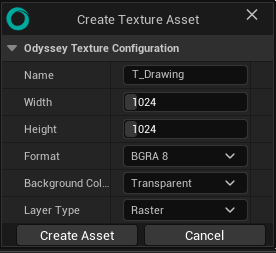
Select “Texture” from the sub-menu Odyssey to display this settings panel:
Icon |
Description |
|---|---|
Name |
Enter the name of your Texture. According to the naming convention, they should be like “T_TextureAssetName” |
Width | Height |
Choose the size of your texture in pixels. If the Texture will be used with a Material to modify a 3D object, we strongly advise you to pick up a size that is a multiple of 2 (i.e. 128 x 128, 256 x 512, 2048 x 1024, etc). |
Format |
This dropdown menu will let you choose the image format : Grey 8 (only grey value in 8 bit), BGRA 8 (Blue Green Red Alpha in 8 bit), BGRE 8 (Blue Green Red Exponent in 8 bit), RGBA 16 (Red Green Blue Alpha in 16 bit) and RGBA 16 F (Red Green Blue Alpha in 16 bit float). If you don’t know what Format to use, keep the defaul value. |
Background Color |
Choose the color of the background. It can be transparent, white or purple (which is useful to paint Normals Maps). |
Layer Type |
Choose between a Raster Layer or a Vector Layer by default. |
Then click on “Create Asset” to confirm your choice.
Warning
You cannot change the size of a Texture afterward! Choose wisely!
Import textures as Layers#
After opening the Texture 2D, if you need to use another Texture 2D from your project as a reference, you can go to “File ▸ Import Texture 2D as Layer”
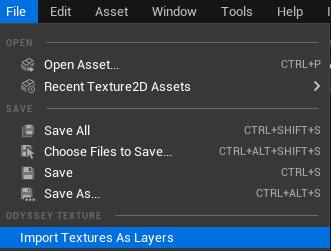
This option will let you import a Texture 2D from the Content Browser and add it as a Layer within the current Texture 2D.
Note
At the moment, there is no feature to resize an imported Texture 2D, so make sure dimensions match.
Texture Details Panel#
Texture Details will be found only when editing a Texture 2D. It displays and allows you to modify the properties of Texture 2D.
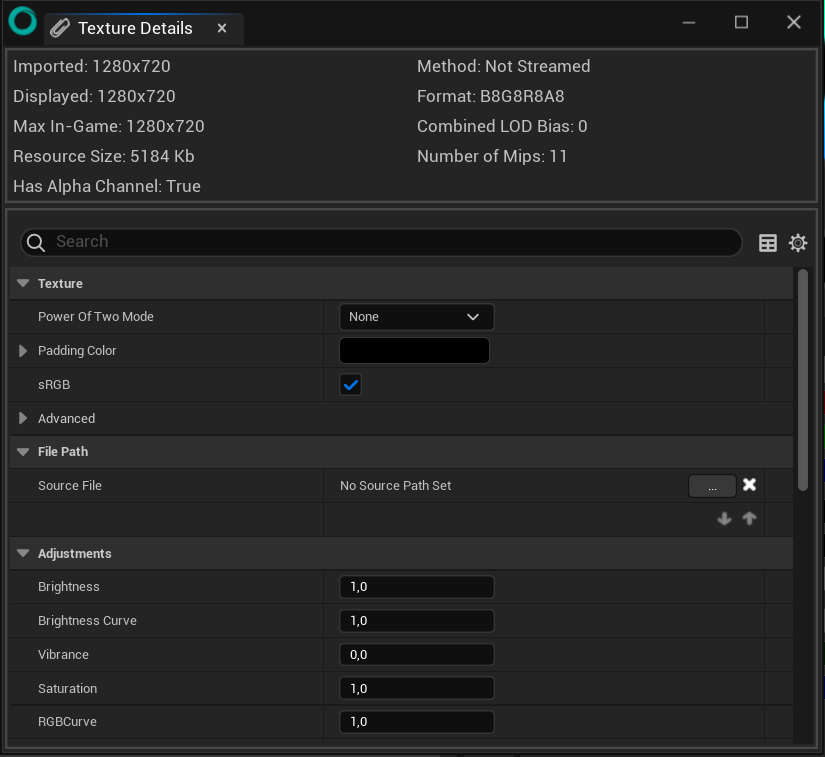
The access to this panel might be necessary, especially to reactivate the live update between a 3D asset and its Textures.
Note
This panel displays the same options as the default Texture Editor from Unreal Engine. For that reason, we advise you to read this documentation from Unreal Engine to know more about the Texture Detail panel.
Using Unreal Engine default editor#
If you need to use Unreal Engine editor to open a Texture 2D instead of Odyssey:
Close the Texture 2D (if opened in Odyssey)
Go to the Content Drawer
Make a right click on the Texture 2D and select “Edit with Default ▸ Texture Editor”
