
Tablet configuration#
There are different ways to configure your tablet to enable the best of experience with Odyssey. Stylus input can be managed in Edit ▸ Editor Preferences in the category Stylus input.
Windows#
Native (default mode)#
By default, Odyssey uses an API (Native) that requires two things on your side:
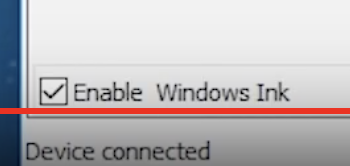
Enable Windows Ink in your tablet drivers:
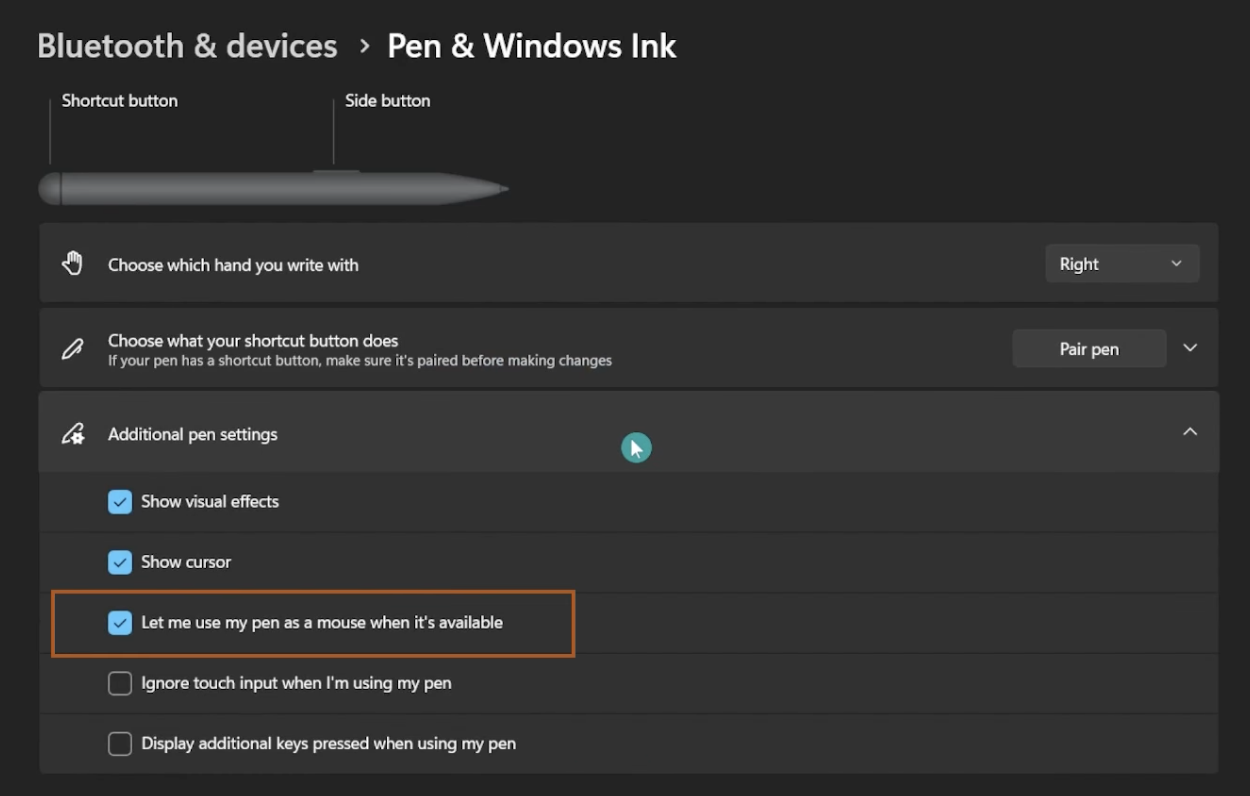
Enable “Let me use my Stylus as a Mouse” in Windows settings:
Tip
Most troubles you may experience when using the tablet come from the fact “Let me use my Stylus as a Mouse” was not enabled.
Wintab#
If you prefer to use Wintab API, you will have to:
go to the “Edit ▸ Editor Preferences” and search for “Stylus Input” to switch to Wintab.
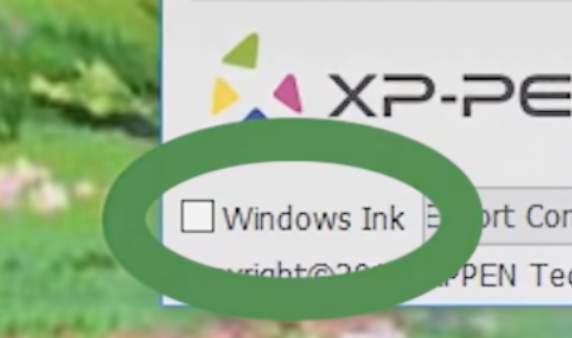
then, disable Windows Ink from your tablet drivers.
Warning
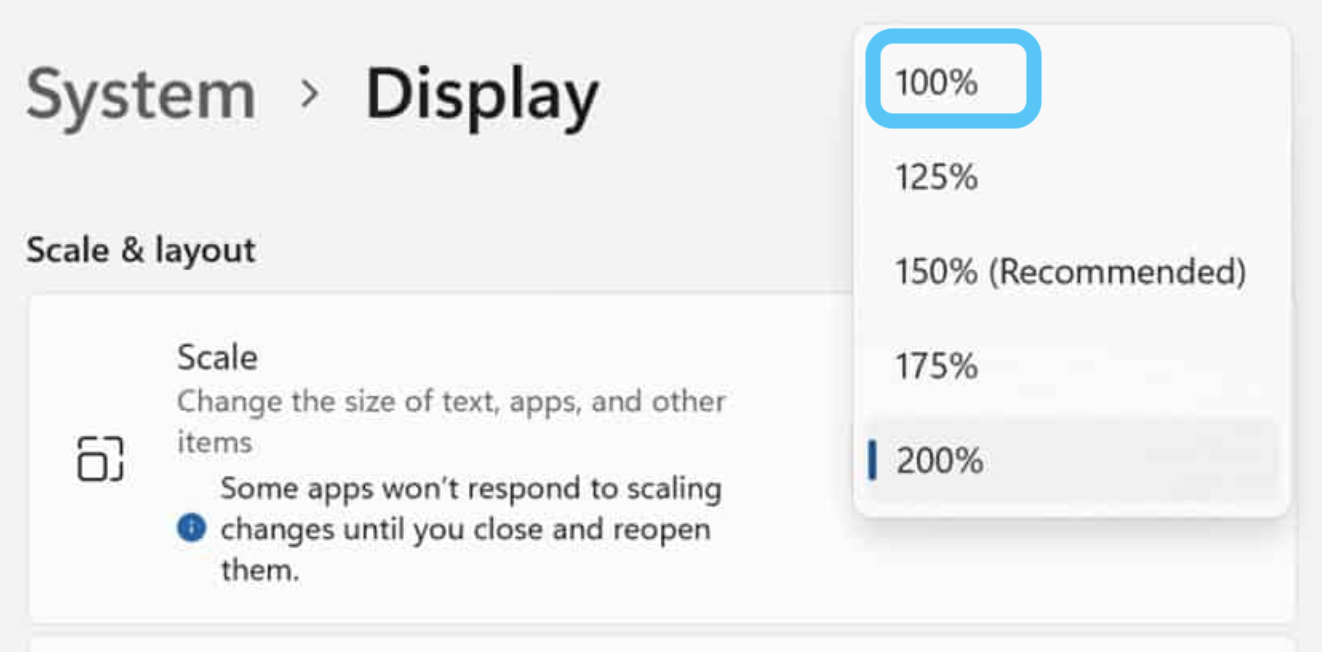
We strongly adivse you to use a scale of 100% on your display tablets (Xencelabs Pen Display or Wacom Cintiq). Otherwise, you might experience offset with HUD in Odyssey.
Mac#
Stylus input is enabled by default (NSEvent). You can use the mode None if you do not want to use a stylus at all (or for debugging purposes).
Warning
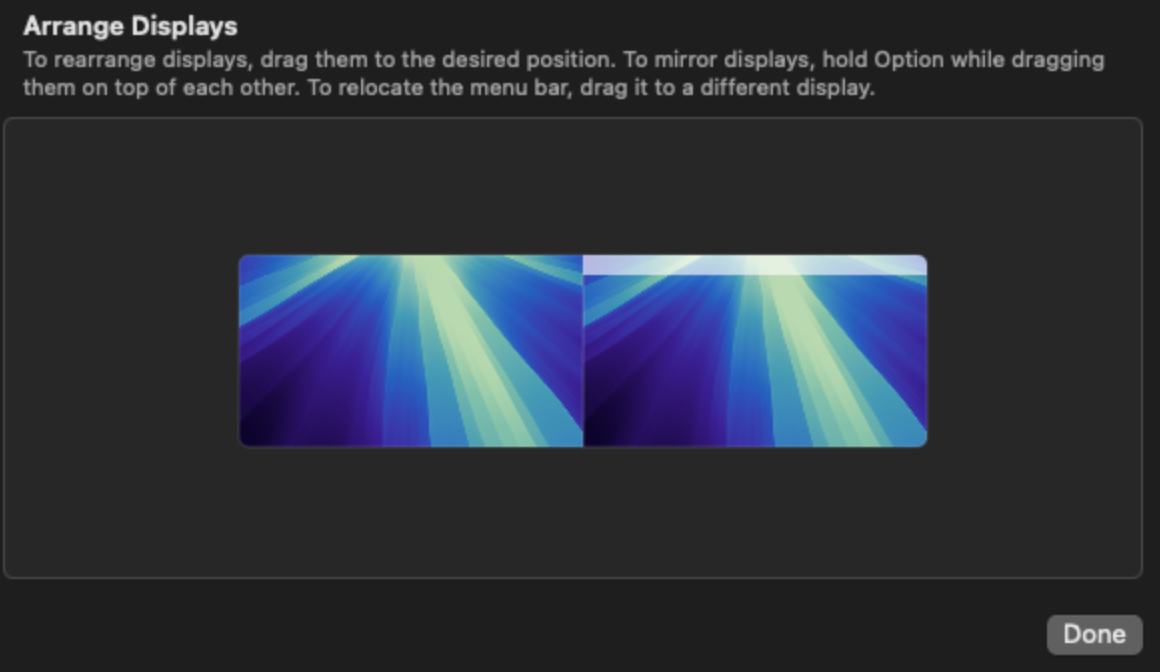
Unreal Engine on Mac has troubles with multiple monitors. If you use a display tablet (Xencelabs Pen Display or Wacom Cintiq), make sure that you have the following configuration:
Both monitors must have the same definition
Monitors must be horizontally aligned (main screen on the right, secondary screen on the left)
Epic Games have been informed of this issue.