
Adjust Block#
Color Model#
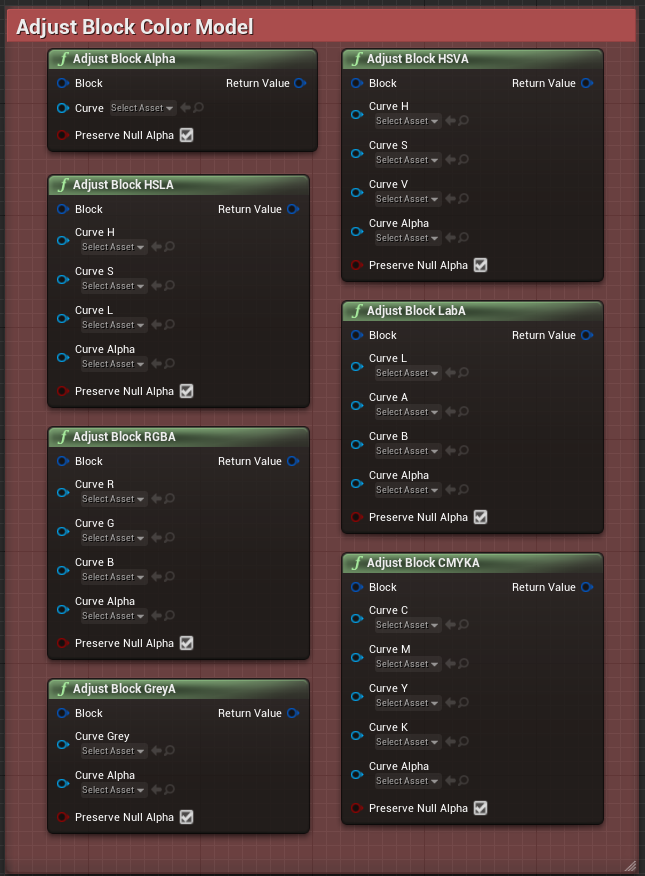
These nodes shall be used to adjust the various channels of a block using Curves Float Objects. This is really useful, especially if you need to adjust a texture (hue, luminosity, saturation, etc).
As example, let’s set create a Blueprint using a photograph as a Texture and “Adjust Block HSLA” with a Float Curve linked to the Hue as a Variable.
In the Content Drawer, make a right click in an empty area and click on “Miscellaneous” to select “Float Curve”.
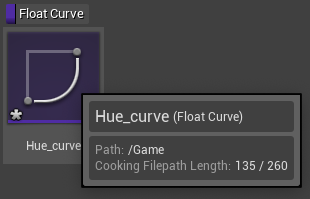
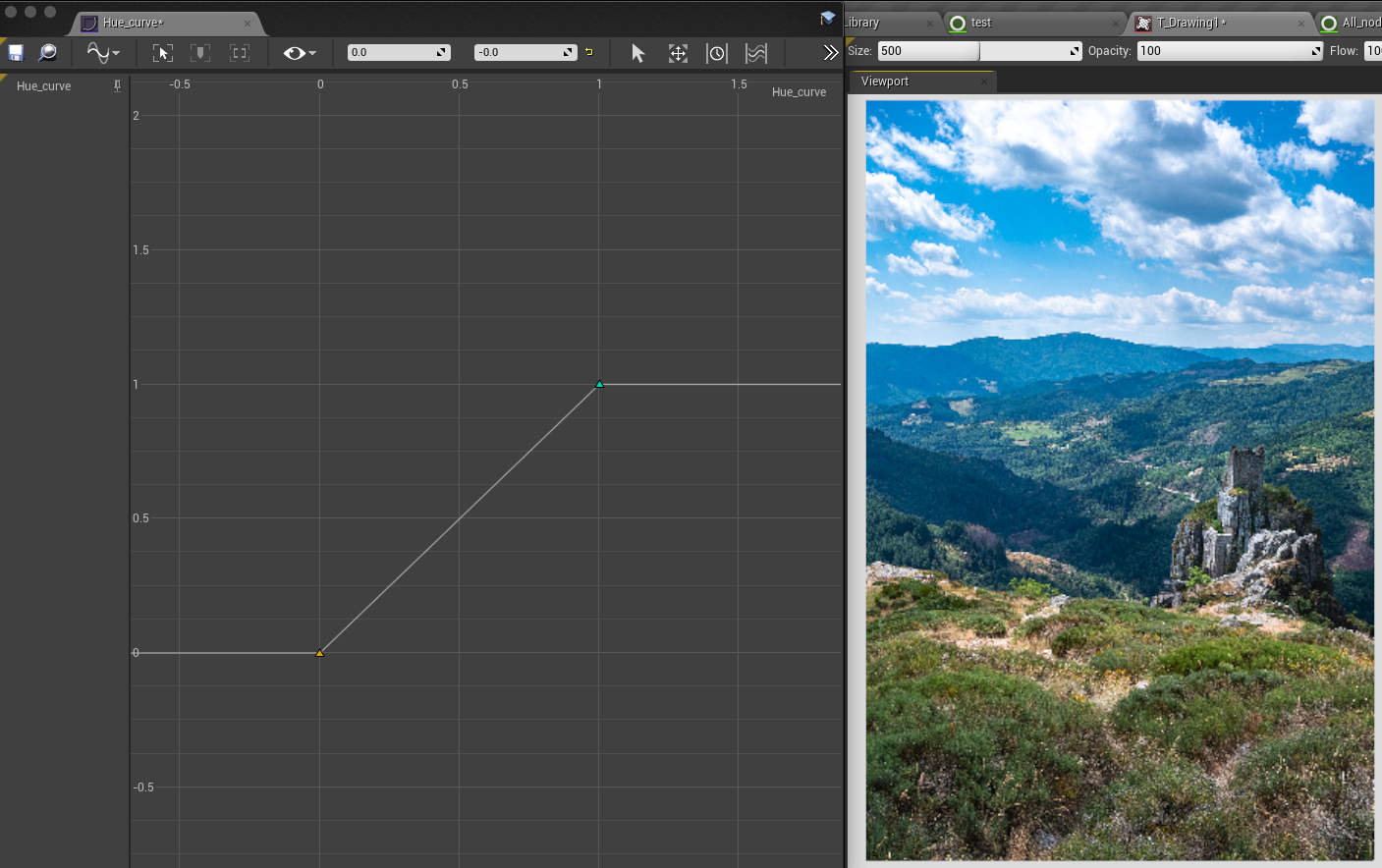
Open and Edit the Curve (to respect the original colors, the curve must go from 0-0 to 1-1 :)
In the Blueprint, create a variable “Curve”
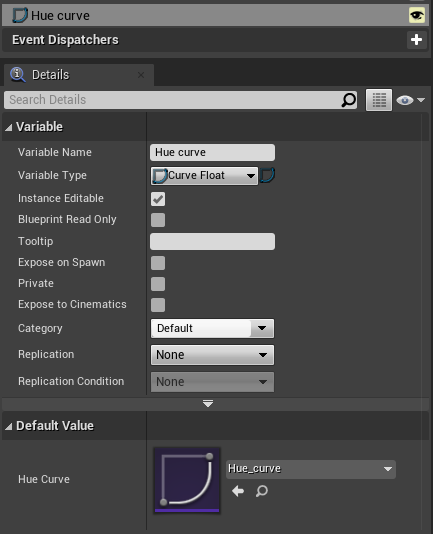
Connect this variable to the input “Curve H” in “Adjust Block HSLA”
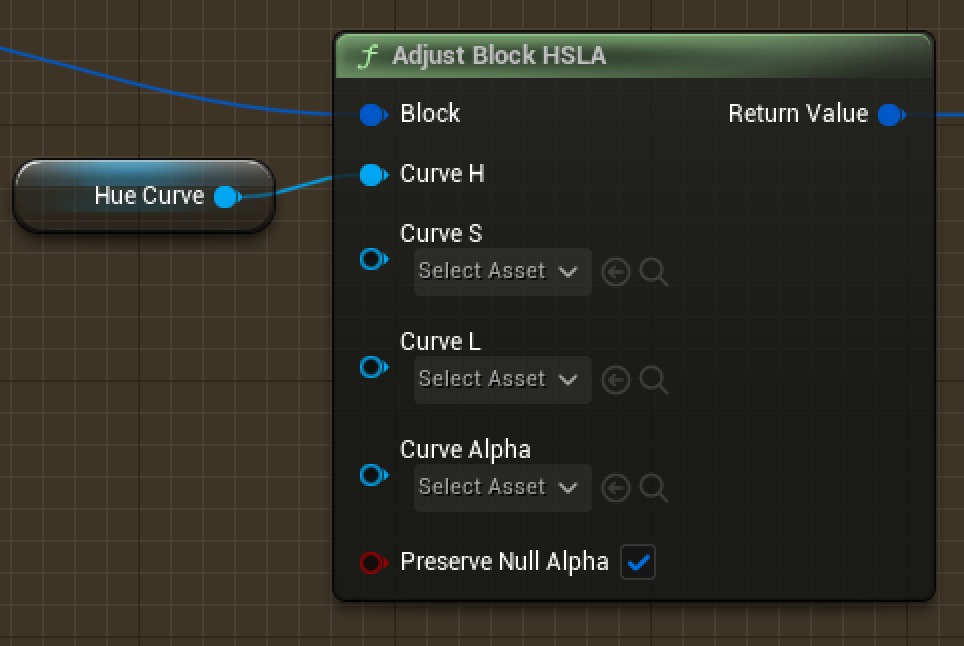
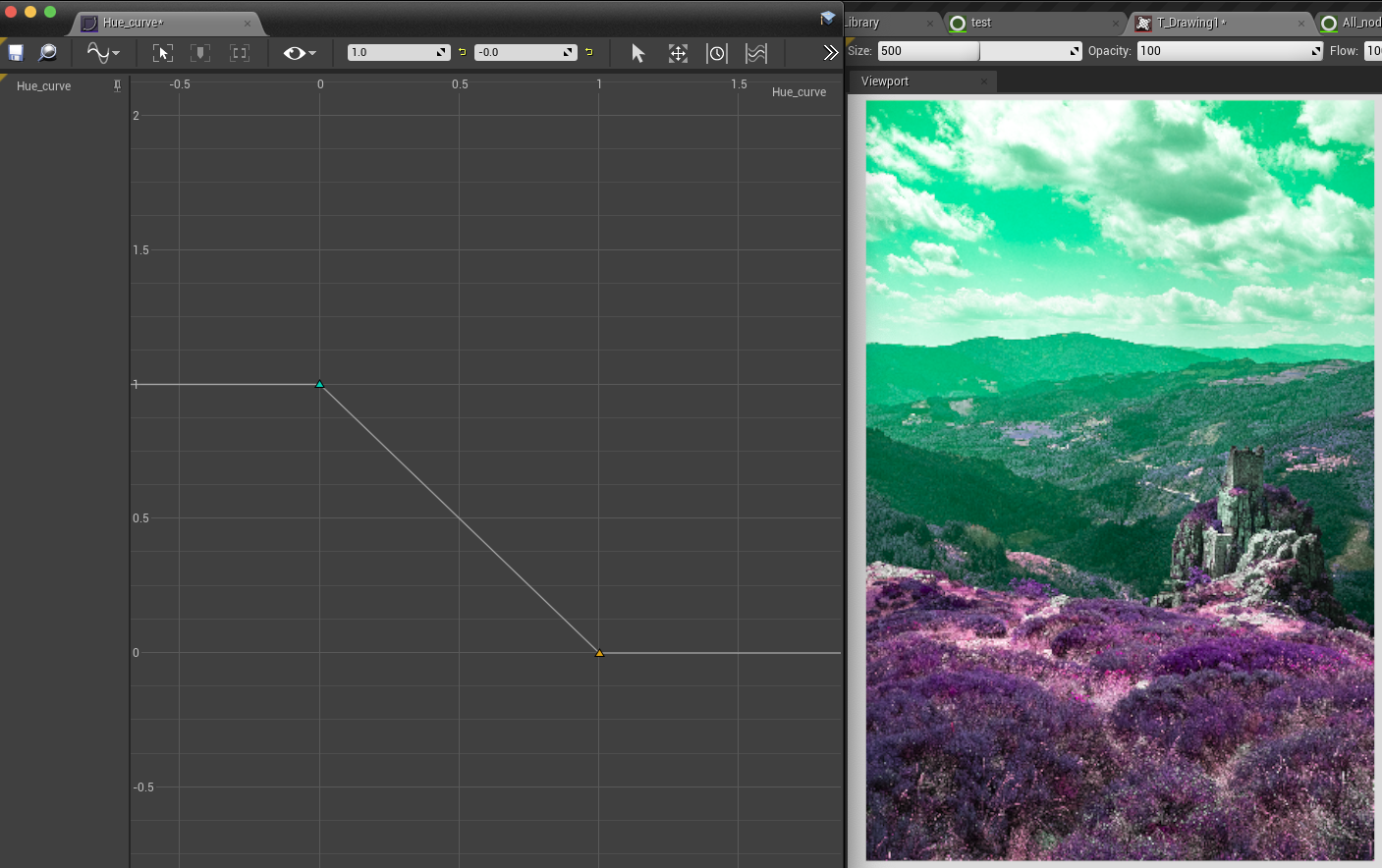
Open the asset Curve and play with its orientation. Some examples:
From 1-1 to 0-0:
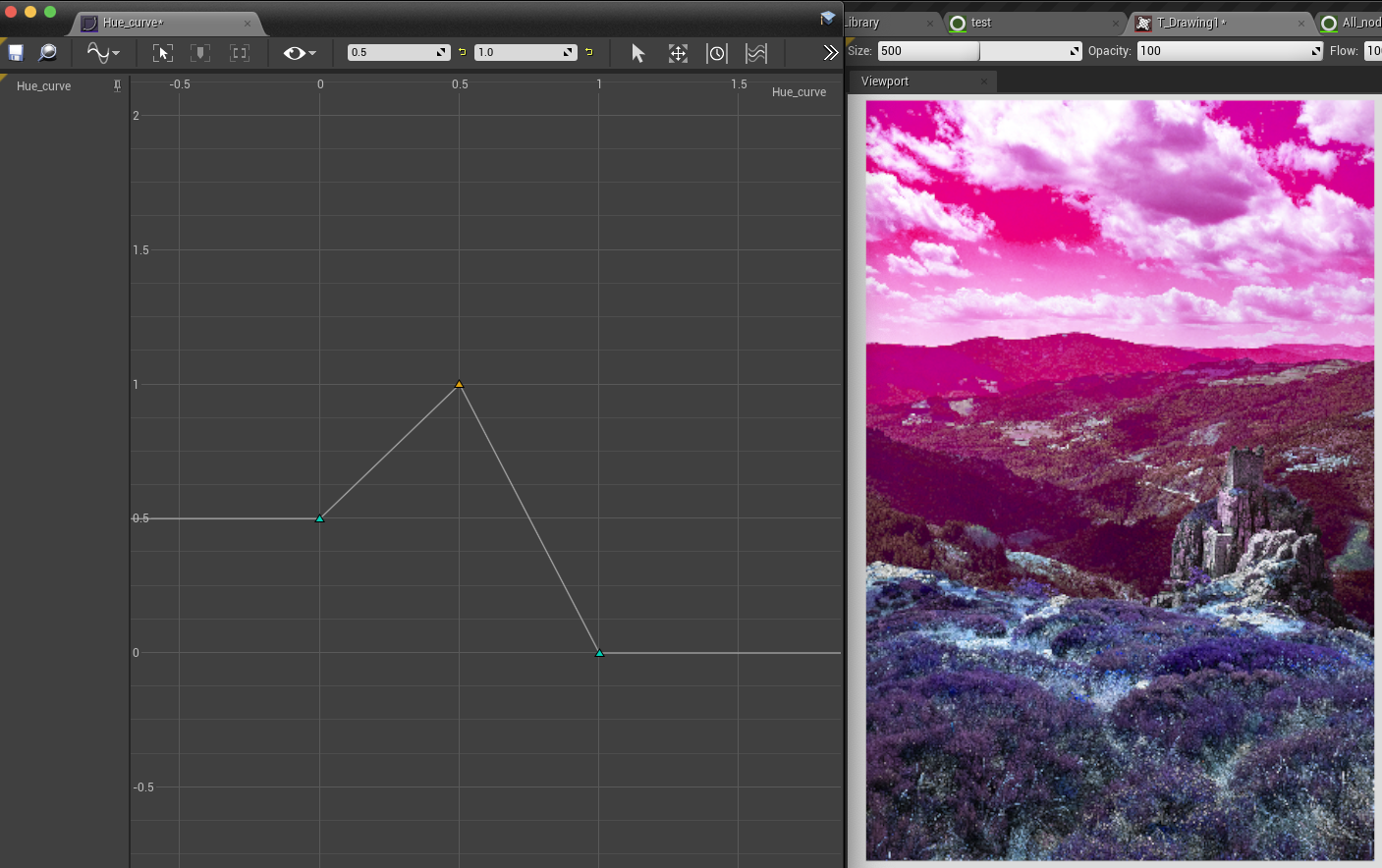
From 0-0.5 to 0.5-1 to 1-0
Note
Please note you will have to check the result by stamping the brush on the canvas each time.
Convert#
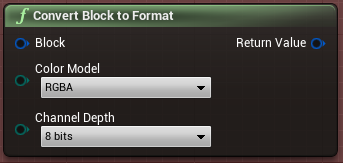
This node will convert the whole Block to another format (Color Model + Channel Depth).